
TouchTrails makes it easy to plan routes, record trails, and navigate through nature. When you open the app, your saved maps are shown right away. If you’re using the app for the first time, you start directly in the map view.
Creating a Map
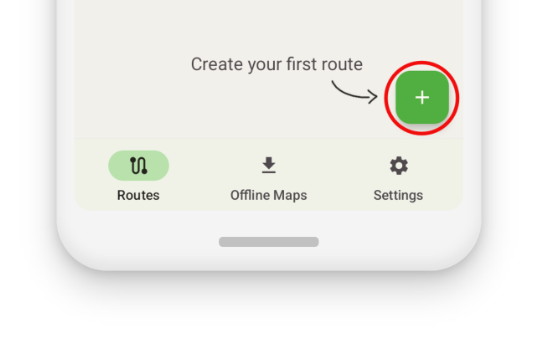
To create a new map, tap the “+” icon. This takes you directly to the map view.
 The Map View
Here you can draw routes with simple gestures, follow your live location, and adjust your routes using the tools in the toolbar.
Draw a Route
Use the pen tool to draw your route by sketching directly on the map with your finger.
Premium users can enable “snap to road,” which automatically aligns the route with existing roads and trails.

Note: No matter which tool is active, you can always pan, zoom, rotate, and tilt the map — except while interacting with routes, endpoints, or waypoints.
Elevation Insights
At the bottom of the screen, you’ll find useful route details: distance already covered, distance remaining, and an elevation profile. Swipe up or down to show or hide this panel as needed.

Auto Save
Your route is saved automatically as you create it — you don’t need to do anything. When you’re done, tap the back button to return to your overview of saved maps.