
Bring new routes into TouchTrails by importing GPX files. You can import them from the Maps List or directly from the Map View, and optionally merge them into your existing maps.
Import via Maps List
- Tap the import button
 in the action bar.
 - Select the GPX file you want to import.
- The file opens in a new map view.
To edit it, tap the save button first to store it inside TouchTrails.
Import via Map View
- Tap the import/export button
 in the action bar.
 Choose “Import from GPX”.
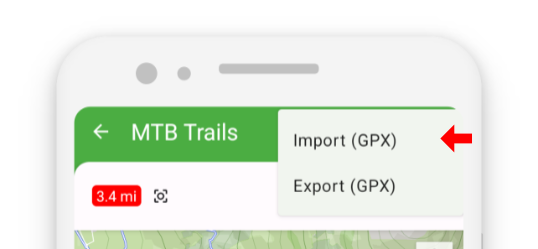
- Select your GPX file to complete the import.
Merging Routes
If your current map already contains a route, TouchTrails will ask whether you want to merge the imported GPX file into the existing map.
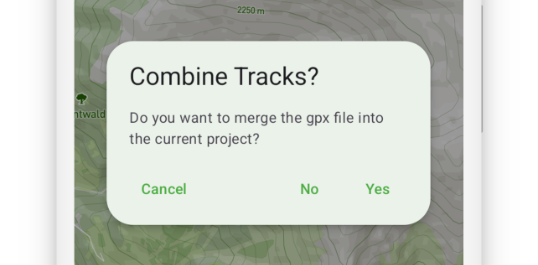
Select “Yes” to combine the routes.
This allows you to merge multiple GPX files into one comprehensive map.Select “No” to import the GPX file into a blank map.
To edit it afterward, remember to save the map using the save button.
Importing GPX files is quick and effortless — making route planning smoother and expanding your exploration possibilities with TouchTrails.