
Keep your maps organized by giving them clear, meaningful names. You can rename maps from both the Maps List and the Map View.
Rename from Maps List
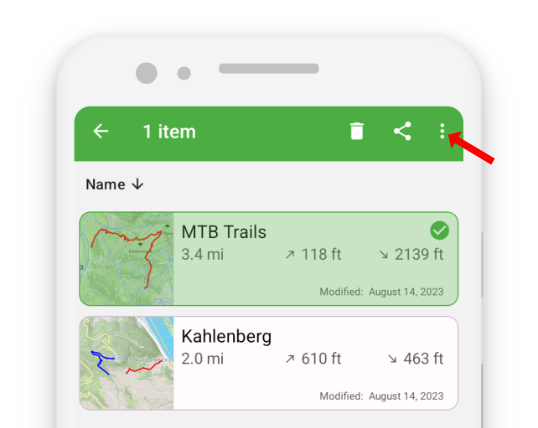
- Touch and hold the map you want to rename.
- Tap the three-dots button in the action bar to open additional options.
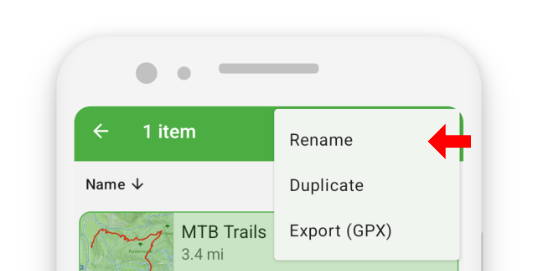
- Select “Rename.”
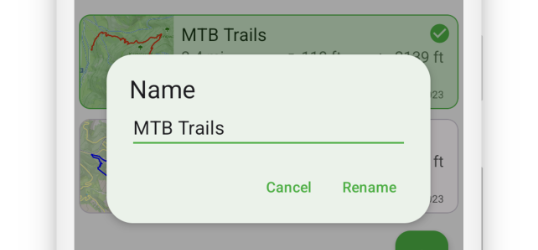
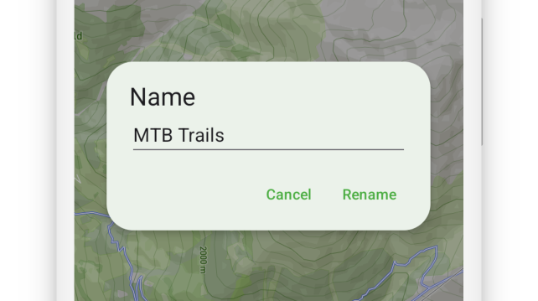
- Enter the new name in the dialog that appears.
Rename from Map View
- In the Map View, tap the map name shown in the action bar.
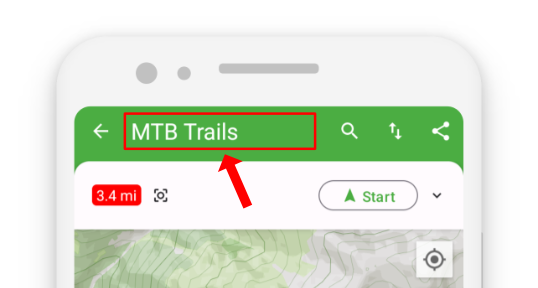
- You can then enter a new name directly.
Renaming maps helps you keep your workspace tidy and ensures that each map accurately reflects its content.