
Export your routes as GPX files to use them in other apps or devices. This feature is available to premium users.
Export via Maps List
- In the Maps List, long-press the map you want to export.
- Tap the three-dots button in the action bar to open additional options.
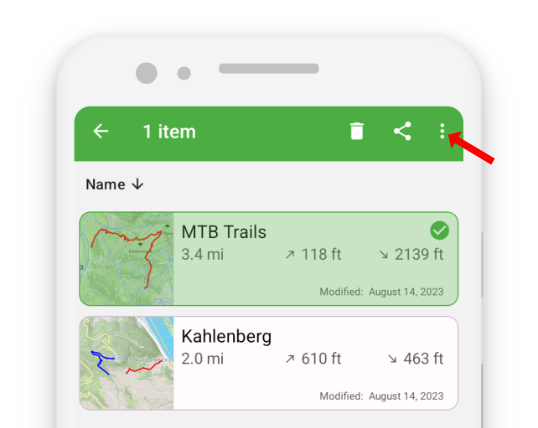
- Select “Export (GPX)”.
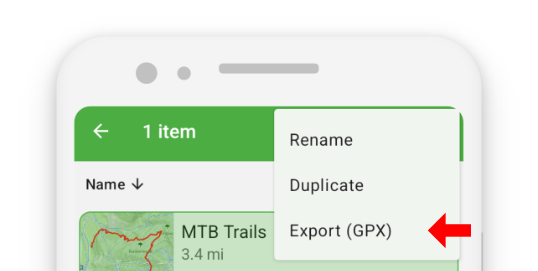
- Choose the location and filename for your exported file.
Export via Map View
In the Map View, tap the import/export button
 in the action bar.
Select “Export (GPX)”.
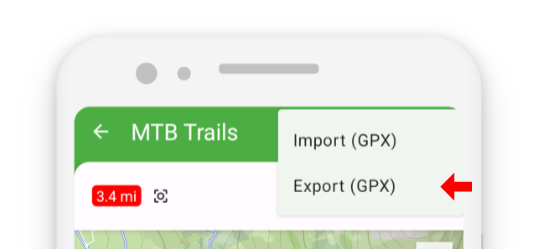
Choose the location and filename to complete the export.
Sharing GPX Files
You can also share GPX files directly with other apps.
See the Sharing section of this guide for more details.
Timestamps and Compatibility
Routes recorded with GPS tracking include valid timestamps.
However, routes drawn manually or edited inside TouchTrails may have missing or invalid timestamps.
Some third-party apps require proper timestamps to import GPX files correctly.
To ensure compatibility, TouchTrails automatically adds synthetic timestamps where needed, so your exported GPX files work reliably across other applications.