
Experience guided outdoor adventures with TouchTrails’ turn-by-turn navigation — a feature available to premium users.
Activating Your Route
To start navigation, make sure the route you want to follow is active.
If your map contains only one route, it is activated automatically.
If you have multiple routes, use the arrow buttons in the top bar to switch between them.

Start Navigation
Tap the navigation start button in the top bar to begin your guided journey.
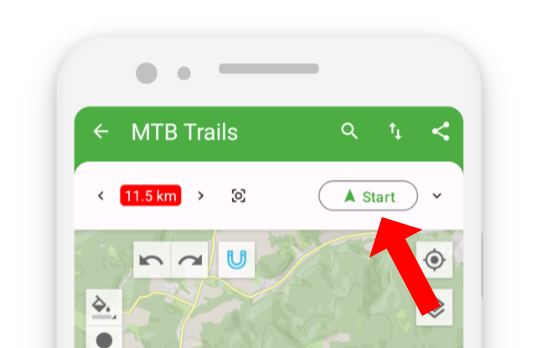
Navigation begins only when you are close enough to the route — about 200 meters (650 feet) or closer.
If you’re too far away, TouchTrails may suggest using a third-party app (like Google Maps) to guide you to the route’s starting point.

Intelligent Turn-by-Turn Guidance
TouchTrails analyzes your route and aligns it with nearby roads and trails whenever possible.
This allows the app to provide clear turn-by-turn instructions:
displayed in the navigation banner
spoken aloud through voice guidance

Compass Guidance
If your route cannot be aligned with known roads or trails, TouchTrails automatically switches to compass guidance.
The compass appears in the navigation banner and helps you stay on track.

Stop Navigation
To stop navigation at any time, tap the X in the navigation banner.

Map Control During Navigation
If you move the map while navigating, you can quickly return to your current position.
Tap the re-center button  at the bottom of the map to focus the view back on you.